Your AI Clone is the who — the personality, knowledge and skills you configured. A Connection is the where — a specific Facebook Page, Instagram account, Telegram bot or other external channel. Assigning a Clone to a platform means linking the two from the Connection's settings panel, and it's the step that turns a channel from merely receiving messages into actually replying to them.
You'll need at least one AI Clone — create one from Clones in the left sidebar — and a channel to attach it to. No channel connected yet? The first section below walks you through it.
How Clones and Connections fit together
Clones live on the Clones page; Connections live on the Connections page, one row per external account you've authorised. They're independent objects — you can have either without the other — and the assignment that wires them together is made from the Connection side, through a dropdown the panel describes as "The clone that will reply on behalf of this integration."
- One Connection → one Clone. The dropdown is single-select: each Connection delegates all of its incoming messages to exactly one Clone.
- One Clone → many Connections. The same Clone can be assigned to several Connections at once. That's the standard pattern — one Clone answering on WhatsApp, Instagram and Email at once, with the same personality and knowledge everywhere.
- No Clone assigned → no AI replies. Messages that reach the Connection aren't even stored, so nothing shows up in Messages either; the Connections page marks the row No Clone. If a connected channel sits silent, its row on that page is the first thing to check.
Connect a platform
If the channel you want isn't connected yet, add it first. The flow is the same for every channel — only the authentication step in the middle changes. Expect roughly 5–20 minutes, most of it on the provider's side rather than in IcloneU.
Open the Connections page
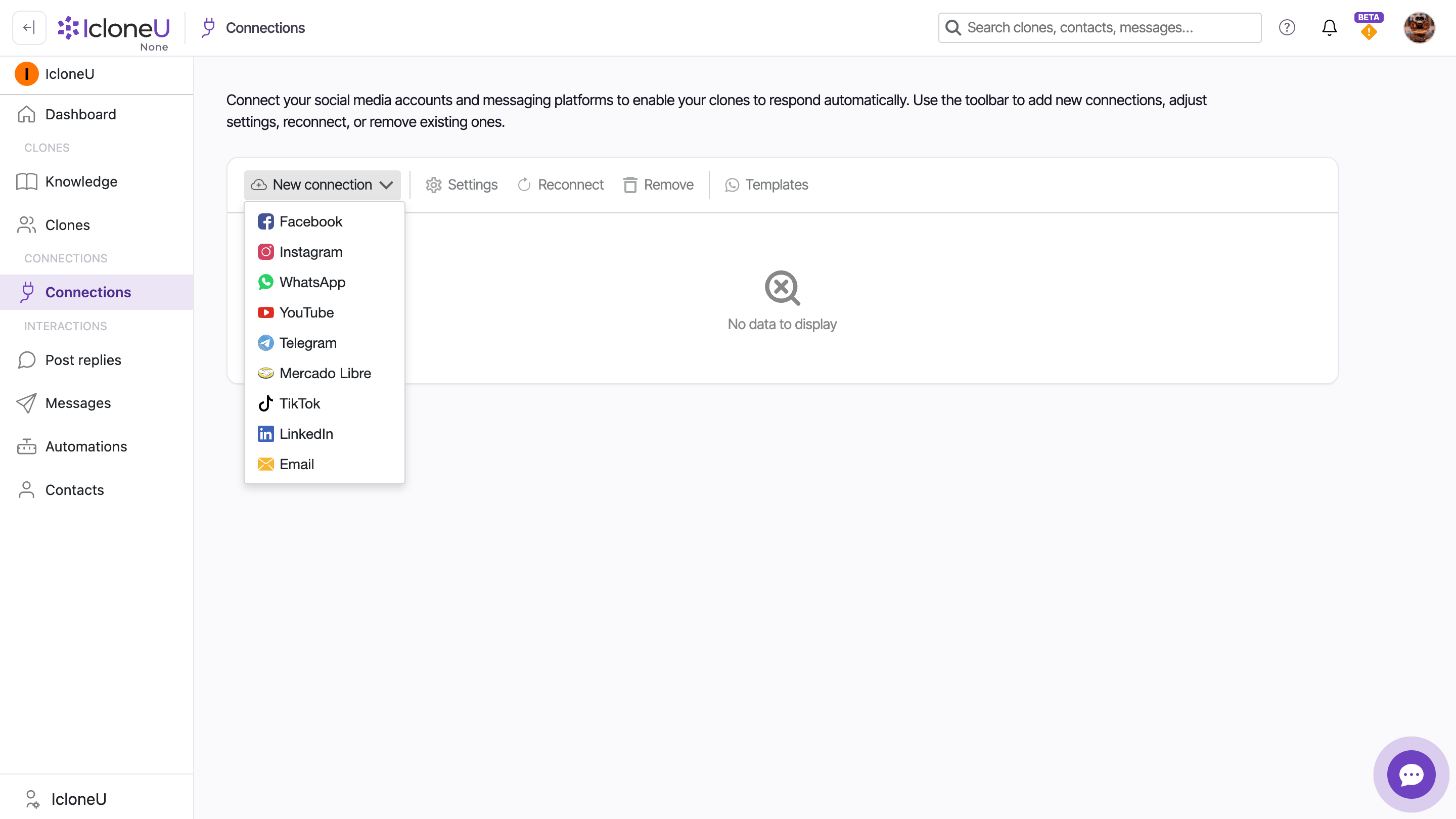
Select Connections in the left sidebar. The page lists every account you've connected, grouped by channel.
Click New connection
The New connection dropdown lists the channels — WhatsApp, Facebook, Instagram, Telegram, YouTube, Mercado Libre and Email. Email can only be added on the Expert and Enterprise plans; on Starter or Pro, picking it shows "Not included in your plan".
TipMost channels ship their own in-product walkthrough, linked from the connect dialog — the authoritative, always-current guide for that channel's flow. Email is the exception: it has no in-product guide.
Complete the channel's auth flow
This is the channel-specific part: Meta login for Facebook, Instagram and WhatsApp; Google login for YouTube; a bot token for Telegram; server credentials for Email. Follow the prompts to authorise IcloneU on the provider's side. For Facebook, Instagram and YouTube you then land on an IcloneU page listing the accounts you authorised: click Connect on the one you want.
Check the new row
Right after connecting, the Connection's settings panel opens automatically — which is exactly where the Clone assignment happens. On the Connections page the new Connection appears under its channel's section: WhatsApp, Telegram and Email Connections read Active straight away, while a new Facebook, Instagram or YouTube Connection reads Disabled until you confirm the AI identifier and save that panel (next section).
Assign the Clone
The assignment lives in the per-Connection settings panel — titled Account options for followed by the account's name. It opens automatically right after you connect a channel, and you can reopen it any time.
Open the Connection's settings
On the Connections page, select the Connection's row and click the Settings (gear) button in the toolbar. The Account options panel opens, showing the account's name, channel and status.
Pick the Clone
In the Clone dropdown — "The clone that will reply on behalf of this integration." — choose who answers here. The list shows only the Clones that exist on your account, and there's no "none" option: a Connection saved with Enabled on always carries a Clone.
On Facebook, Instagram and YouTube: confirm the AI identifier
On these three comment channels the panel shows an AI identifier ✨ card — "Confirm the AI identifier is visible on this profile before enabling the Clone." — with the switch I have added the ✨ AI identifier and disclosure to this profile. While it's off, the card shows the hint Required before enabling this integration. and Save stays disabled on an enabled Connection. Switch it on first; once you save, the card reads Confirmed on {date}. On a new Connection on these three channels, that Save is also what switches the Connection on. Other channels (WhatsApp, Telegram, Email, Web chat) don't show this card.
Save
Click Save. A change of Clone only persists once saved — closing the panel with Cancel discards it and keeps the Clone the Connection already had. On Facebook, Instagram and YouTube, Save stays disabled on an enabled Connection until the AI identifier ✨ confirmation above is switched on — and on a new Connection there, Cancel also leaves the Connection switched off.
A fresh connect binds your account's default Clone — the oldest one — automatically, so the Connection is bound from its first moment whether or not you save the post-connect panel. Closing that panel without saving is not always harmless, though: a new Facebook, Instagram or YouTube Connection starts switched off, and it stays Disabled — ignoring everything that arrives — until you save the panel with the AI identifier ✨ confirmation on. WhatsApp, Telegram and Email Connections start on. An empty Clone field now means exactly one thing — your account has no Clones at all. In that state the panel points you to create one first, and the Enabled switch is greyed out — saving turns it off: a Connection with nothing to route to can't present itself as active.
Pausing a channel: the Enabled toggle
At the top of the same panel sits the Enabled toggle: "When off, incoming messages and comments for this account are ignored. Tokens are kept so you can re-enable without reconnecting." Because the Clone dropdown has no "none" option, this toggle — not detaching the Clone — is how you stop a Connection from replying. It starts on for WhatsApp, Telegram and Email, and off for a new Facebook, Instagram or YouTube Connection until you save the panel with the AI identifier ✨ confirmation on.
What exactly happens to what arrives while the toggle is off? Nothing is stored: no contacts are created, nothing appears in Messages, and no Dashboard metric moves. Manual polling doesn't bypass it either — Refresh on Post replies brings in nothing while the connection is off. Whether those messages are gone for good depends on the channel:
| Channel | Messages that arrive while off |
|---|---|
| Facebook, Instagram, WhatsApp, Telegram | Lost for good — these channels push messages in, the pause discards them, and the provider doesn't resend |
| Recovered — the mail stays in your mailbox, and after you re-enable IcloneU reads all of it, oldest first and about 50 emails a minute, and handles each one like new mail | |
| YouTube | Recovered — comments stay on YouTube and are picked up after you re-enable, as long as they're still within the polling window |
- Enabled off pauses automated handling while preserving the channel's authentication — flip it back on and replies resume, no re-login needed. Useful during a campaign, an incident or off-hours.
- Remove (in the same toolbar) disconnects the account and deletes its settings. Your conversation and post history is preserved by default and reattaches automatically if you reconnect the same account later; permanently deleting that history is a separate opt-in checkbox in the dialog, and only then does "cannot be undone" apply.
What changes per channel
The settings panel adapts to the kind of channel: comment channels — where your Clone replies publicly under posts (Facebook, Instagram, YouTube) — get extra controls that message-only channels such as Telegram never show.
- Post options appears only on comment channels — "Control how AI replies handle your public posts and comments." Its four toggles (all off by default) are Transcribe and use post videos as context, Use account's first level comments as context, Respond to live broadcasts and Limit which posts I respond to. Comments on a new post are answered from the moment it's published; to keep the Clone off some posts, use Limit which posts I respond to. On Mercado Libre the section shows only Limit which posts I respond to, because a listing has no videos, live broadcasts or comments of your own. On a message-only channel the section simply isn't there.
- AI identifier ✨ appears only on the comment channels (Facebook, Instagram, YouTube, plus Mercado Libre, and TikTok for beta accounts) — "Confirm the AI identifier is visible on this profile before enabling the Clone." You must switch on I have added the ✨ AI identifier and disclosure to this profile. before Save will work on an enabled Connection; until then the card shows Required before enabling this integration., and after saving it reads Confirmed on {date}. Message-only channels never show it.
- Response authorizations — the section headed "Response authorizations required for" — now appears on every channel except Web chat. On comment channels (Facebook, Instagram, YouTube) a ticked category always holds the Clone's post-comment replies for your approval; an unticked one sends automatically. For direct messages, what happens to a matching reply is set by the Direct-message review chips just below the categories — see the next bullet.
- Direct-message review — inside the same section, on every DM-capable channel — decides what happens to a DM reply that matches a ticked category. Send immediately (the default) answers without review. Hold until approved keeps the reply waiting until you approve it; on Facebook, Instagram and WhatsApp the panel warns: "This platform only allows replies within 24 hours of the customer's last message. A reply that isn't approved in time expires and can no longer be sent." Auto-send after a delay parks the reply for the minutes you set (5–240, 30 by default) and then sends it on its own — "Minutes before the reply sends automatically. You can approve, edit or cancel it during this time." If the customer writes again while a reply is parked, that reply is cancelled and a fresh one is generated. On the 24-hour channels the delayed mode is the safer pick: missing a review costs you the review, never the delivery.
- Reply timing appears on every channel: keep Use team defaults to inherit the team's schedule and delay, or pick Customize for this account to give just this Connection its own reply window.
All of these are per-Connection settings. The same Clone can auto-send answers on one channel, require your approval on another, and reply on a different schedule on a third.
Frequently asked
Yes — that's the standard pattern. Assign the same Clone to several Connections, and it applies the same personality and knowledge to every channel. The per-Connection settings (Enabled, response authorizations, reply timing) still apply individually, so the same Clone can behave differently per channel.
Not from the settings panel — the Clone dropdown is single-select, so each Connection delegates to exactly one Clone. If you need different behaviours on the same channel (say, sales vs. support), the reliable pattern today is separate Connections per surface — for example a second WhatsApp number — each with its own Clone.
It depends on your plan tier — as of writing, Starter includes 2 Connections, Pro 5 and Expert 8, with Enterprise custom. The per-tier card on the Plans page is the authoritative number for your account.
Open its Settings and check two things: a Clone is assigned, and the Enabled toggle is on. On Facebook, Instagram and YouTube a new Connection starts switched off and stays Disabled until you switch Enabled on, switch on the AI identifier ✨ confirmation and click Save — if the post-connect panel was closed without saving, that's the cause. A fresh connect binds your account's default Clone automatically, so a Connection with no Clone usually means the account had no Clones when the channel was connected — that state is flagged in the panel and in System Health, and Enabled can't be switched on until you create and assign one.
Last updated October 4, 2026 · AI Clones