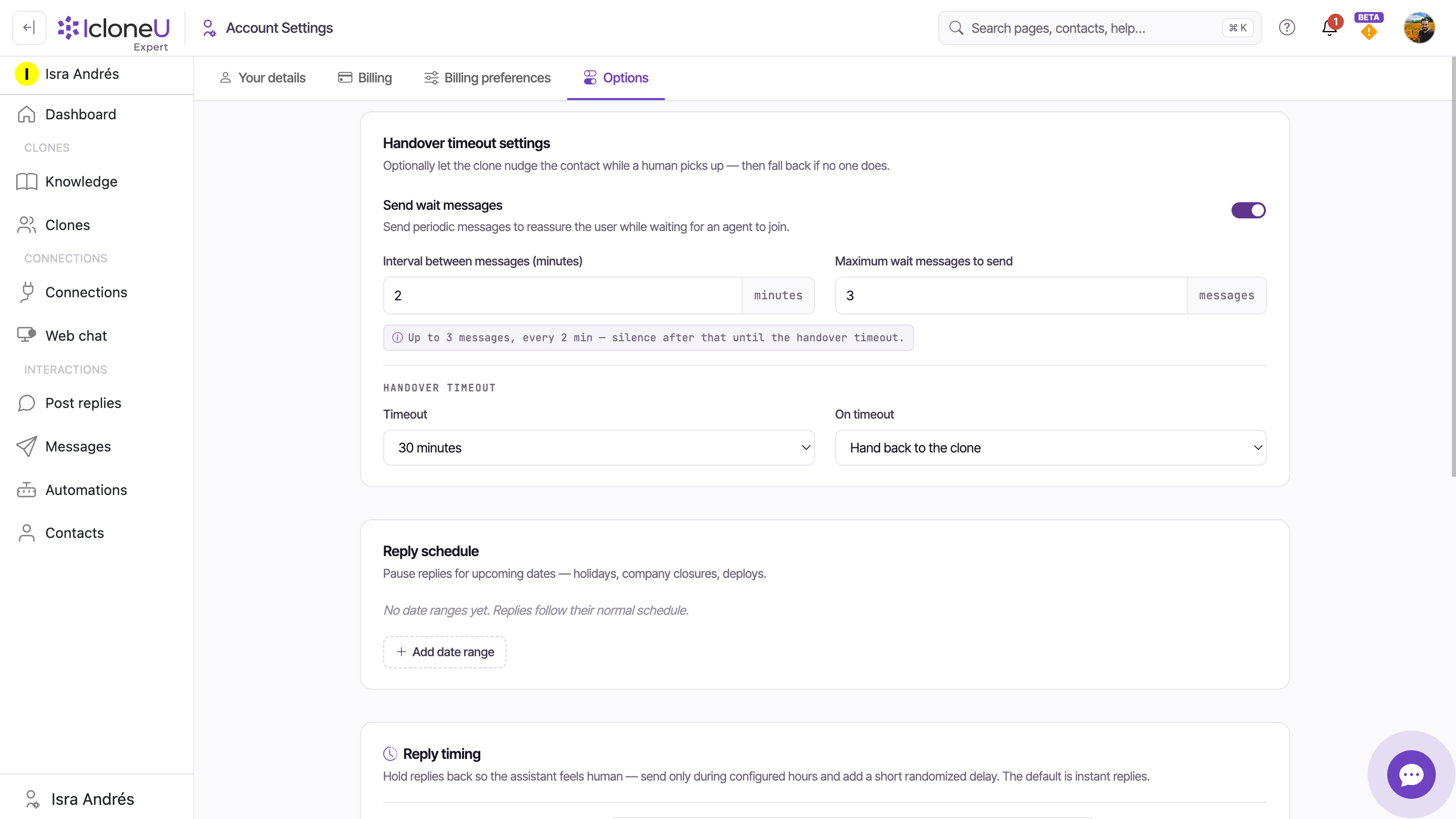
Open the avatar menu (top-right) → Account settings → the Options sub-tab — the fourth tab, after Your details, Billing and Billing preferences. It's a single scrollable page, and three of its cards hold the reply-behaviour preferences this guide covers: Handover timeout settings, Reply schedule and Reply timing. Between the first two sit two more cards, Team activity tracking and Audience Avatar, each a single switch that isn't about replies and that, unlike the three reply cards, acts on the team you're working in. Only the team's owner and members whose role can manage the team can change those two; anyone else sees them greyed out, with the note "Only the team owner or members who can manage the team can change this." The settings on this tab save on their own — toggles and pickers save immediately, number fields save a moment after you stop typing — so there's no separate Save button (the one exception is the Add/edit date-range dialog, which has its own Save button).
Everything on this page applies across your whole account and every channel. There is no per-Clone or per-channel override of these settings on this tab — they're the defaults that govern reply behaviour everywhere. The one per-channel exception lives on the connection side: a connection's own options panel can customize Reply timing for just that channel (see the FAQ). These are your own account's defaults: the three reply cards always belong to your own account, so when you work in someone else's team, the defaults that govern its conversations are its owner's, and only the owner can change them. You can still see the team's reply timing: a connection whose Reply timing card is on Use team defaults shows the team's timezone, hours, days and delay, read-only.
Handover timeout settings
Handover is when a conversation is escalated from the Clone to a human. Triggering and managing that takeover happens per conversation in the Messages surface — this card only configures the timeout and fallback of that flow: how long to wait for a human, what to do if no one shows up, and whether the Clone reassures the contact while they wait. The card's own subtitle sums it up: "Optionally let the clone nudge the contact while a human picks up — then fall back if no one does."
Two groups sit inside this card: Send wait messages (the optional reassurance nudges) and Handover timeout (the wait period and what happens at the end of it).
Send wait messages
A toggle described as "Send periodic messages to reassure the user while waiting for an agent to join." When you turn it on, two fields appear: Interval between messages (minutes) — how often a reassurance message goes out — and Maximum wait messages to send — the cap on how many are sent.
Then silence until the timeoutThe reassurance is capped, then stops. After the maximum number of messages have gone out at the configured interval, the contact hears nothing more until the handover timeout fires. A long timeout paired with a low message cap can leave a contact waiting in silence — the card's recap line spells this out, e.g. "Up to 3 messages, every 2 min — silence after that until the handover timeout."
Timeout
Under the Handover timeout heading, the Timeout dropdown sets how long to wait for a human to pick up before the timeout action fires. The choices are 15 minutes, 30 minutes, 1 hour, 2 hours and Never.
On timeout
The On timeout dropdown decides what happens when no human picks up in time. Two options: Hand back to the clone (the Clone resumes answering) or Notify the team (alert your team instead of resuming).
Choosing Never means the conversation stays in handover until a human claims it or someone on your team cancels it in Messages — the Clone won't auto-resume and no timeout fallback fires. Pick this when you'd rather a message sit waiting than have the Clone answer something a human was meant to handle.
The timeout isn't the only thing an open handover changes. While a conversation sits in an open handover — badged Handover requested, Pending assignment or Agent handling — the marketing IcloneU sends on its own steps aside for that contact, so nobody gets a promotion in the middle of an unresolved case. A broadcast leaves them out of that send and its delivery report lists them as Skipped with the note "Handover pending" in the Error column. A sequence step and an automatic review request are each postponed an hour at a time and keep retrying, so they wait for the case to close instead of being dropped. A store-recovery flow — the automation a marketing store event starts, such as an abandoned cart or checkout, a product browsed but not bought, a cancelled subscription, or Hotmart's Payment expired and Purchase complete (refund window closed) — is dropped for that event rather than queued, so that particular message never arrives. Transactional automations, like an order confirmation, are unaffected, and so is the Clone itself before an agent takes the conversation: it keeps answering while the handover is still requested or waiting for someone to pick it up.
Reply schedule
The Reply schedule card pauses replies for upcoming dates — its subtitle reads "Pause replies for upcoming dates — holidays, company closures, deploys." Each entry is a named date range during which the Clone holds its replies. When you have no ranges set, the empty state reads "No date ranges yet. Replies follow their normal schedule."
Add date range
Click Add date range. A small form opens asking for a Name (with the placeholder "e.g. Christmas closure") and the Dates — a start and an end date for the pause.
Name it and pick the dates
Give the range a name and pick the start and end dates, then save it. The end date can't be before the start date. Saved ranges show up in the list with a Replies paused meta line; click a row to edit it.
A reply-schedule date range pauses replies entirely for the window — it does not send an automatic "we're away" reply in their place. This is a blunt pause: during the range, the Clone simply holds replies.
Reply timing
The Reply timing card makes replies feel less robotic in two ways — by limiting when the Clone is allowed to reply, and by adding a short randomised delay before each reply goes out. Its subtitle: "Hold replies back so the assistant feels human — send only during configured hours and add a short randomized delay. The default is instant replies." Note the last line: out of the box, replies are instant; these controls trade immediacy for a more human cadence.
Timezone
Pick the Timezone the reply hours are read in — its helper note says "Reply hours below are interpreted in this timezone." Set this before the hours, so the window you configure means what you expect. A new account starts in the timezone of the browser it was created in, or in UTC when IcloneU can't tell. And whenever this tab opens while the timezone is UTC and Only send replies during certain hours is off, it switches to your browser's timezone, if that isn't UTC, and saves it on its own; picking UTC by hand while the hours are off switches it back the same way. So UTC only stays put while the hours are on, or when your browser itself is set to UTC.
Only send replies during certain hours
This master toggle gates the day-and-time window. Its helper: "When off, the clone replies at any time of day. The day and time controls below are disabled." So while it's off, the Days of week and Time window controls are dimmed and have no effect — turn it on to use them.
Days of week
With the hours toggle on, pick which days the Clone may reply using the Sun through Sat chips — "Select which days the clone is allowed to reply."
Time window
Set the From and to times for the allowed window.
Overnight windows are backwards on purposeFor a window that crosses midnight, set the start later than the end. The control says so directly: "Set the start later than the end for an overnight window (e.g. 22:00 to 06:00)." A naive "start before end" assumption is wrong here.
Reply delay
The Reply delay adds a random pause before each reply: "A random delay in this range is added to every reply so responses don't look automated. Set both to 0 for instant replies." The field reads "Wait between [ ] and [ ] minutes before replying." Leave both at 0 (or unset) and replies send instantly.
The min can't exceed the maxThe lower bound has to be less than or equal to the upper bound. If you enter a minimum larger than the maximum, the card flags it: "The minimum delay must be less than or equal to the maximum."
A summary line at the bottom of the card recaps the current configuration. When nothing is configured it reads "Replies send instantly."; once you set hours and/or a delay it summarises the window and delay range instead.
Separate from this card, each connection has its own Direct-message review setting (open the connection's options from Connections). In its Auto-send after a delay mode, matching direct-message replies wait for that connection's review period and show an amber In review pill with their send time — even when everything on this card is off. When that review delay and a schedule or delay from this card both apply to the same reply, the later send time wins: the review window never shortens a delay you configure here.
When Reply timing or a Reply schedule date range holds a reply back, the reply later goes out as text only. It carries no voice note, even if the Clone answers voice notes with voice. It carries no file either: when the Clone can tell the reply will be held, it doesn't attach one from its Files the clone can send; it gives the key information in text, says your team can share the file, and the file doesn't count as sent. A product photo from a connected store follows the same rule: the Clone describes the product in text and offers the photo through your team instead of attaching it. The wait is worked out once, before the Clone writes, so a reply that will be held never promises a file. If writing the answer takes longer than that wait, the reply goes out at once, still without the file. A connection's Direct-message review works the same way for voice notes, and on those connections the Clone doesn't attach files at all.
The three cards at a glance
What each reply-behaviour card on the Options tab controls, and the one thing to remember about it:
| Card | What it controls | Remember |
|---|---|---|
| Handover timeout settings | Reassurance messages while waiting, the wait period, and the fallback when no human picks up | Configures the timeout/fallback only — the takeover itself is triggered in Messages |
| Reply schedule | Named date ranges that pause replies entirely (holidays, closures, deploys) | A hard hold, not an away-message reply |
| Reply timing | Restrict reply hours by timezone/day/window and add a randomised delay | Defaults to instant replies until you turn something on |
Frequently asked
They're account-wide defaults. The Options tab holds account-level defaults that govern reply behaviour across every Clone and every channel, and there's no per-Clone or per-channel override of handover timeout, reply schedule or reply timing on this tab. Reply timing alone has a per-channel override, on the connection side: each connection's options panel carries its own Reply timing card, where Use team defaults inherits this tab's schedule and delay and Customize for this account gives just that connection its own. In someone else's team, those defaults are its owner's, because this tab's reply cards always belong to your own account; while a connection's card is on Use team defaults, it shows you the team's schedule and delay, read-only.
Not here. Triggering and managing a takeover happens per conversation in the Messages surface. The Handover timeout settings card only configures what happens around that flow — how long to wait for a human, the reassurance messages sent while waiting, and whether to hand back to the Clone or notify the team if no one picks up. Messages is also where you cancel a handover nobody has picked up: the undo-arrow button in the conversation's header (its tooltip reads Cancel the handover and return to AI), or Return Selected to AI for several conversations at once — see Reviewing and editing AI responses.
Yes, for every Clone left on Use team defaults in its Handover business hours (the Clone's Identity tab → Human Handover → Configure schedule); Personalize for this clone gives a Clone its own hours instead. Outside those hours, a Clone that hands a conversation over keeps helping and lets the customer know a person will get back to them during business hours, and Hand over when a customer sends a file the clone can't read, if it's on, doesn't hand over at all: the Clone keeps the conversation and answers from what it read in the file when its Read photos and documents customers send switch is on and it could read it, or otherwise says it can't see the file. With Only send replies during certain hours off there are no set hours, so a person counts as available at any time. A teammate can still take over a conversation at any time. See Creating and configuring an AI Clone.
No. A Reply schedule date range pauses replies entirely for the window — the Clone holds its replies rather than replying with an away message. It's a blunt pause, not an auto-responder.
The marketing ones, yes. From the moment a handover is requested until an agent closes it — badged Handover requested, Pending assignment or Agent handling — broadcasts skip that contact and mark them Skipped with "Handover pending" in the delivery report, sequence steps and automatic review requests postpone an hour at a time until the case closes, and a store-recovery automation — an abandoned cart or checkout, a product browsed but not bought, a cancelled subscription, Hotmart's Payment expired or Purchase complete (refund window closed) and the like — is dropped for that event. Transactional automations such as an order confirmation still deliver. This is a property of the handover itself, not something you switch on: nothing on this tab turns it off.
Silence, until the handover timeout fires. Once the maximum number of wait messages have gone out at the configured interval, the contact hears nothing further until the timeout is reached and the on-timeout action runs (hand back to the Clone, or notify the team). A long timeout with a low message cap can leave a contact waiting quietly — worth balancing the two.
Set the start later than the end. For 22:00 to 06:00 you'd put 22:00 in From and 06:00 in to — the control calls this out, so don't expect the usual "start before end" rule to apply for windows that cross midnight.
For the tab's settings, no — they auto-save: toggles and pickers save immediately, and the number fields (like the reply delay) save a moment after you stop typing, so there's no separate Save button. The one exception is the Reply schedule Add/edit date-range dialog: that one has its own Save button (and Cancel), and you do need to save it to apply the range.
Last updated October 4, 2026 · Account & Settings