Notifications in IcloneU appear in one place in the app — the bell icon in the top toolbar — with a single bulk control to clear them, and a few important ones are also sent by email. You decide how each kind reaches you on the Notifications tab of Account settings: whether it shows in the app, and whether it's emailed never, only when it's important, or every time. Those choices change only what reaches you, not what your teammates get. Some notices reach only the account owner, whatever anyone's settings say. And for alerts of your own, a workflow's Notify Admin step sends whatever message you write.
They're on Account settings → Notifications. Jump to Choose how you get notified for what each control does.
The bell icon and the panel
The bell lives in the top toolbar on every page, next to the search box. When you have unread notifications it carries a red unread-count badge. Clicking the bell opens the Notifications panel.
Find the bell in the top toolbar
Look to the top-right area of any page, near the search box. A red badge with a number means you have that many unread notifications waiting.
Click it to open the Notifications panel
The panel header reads Notifications, with a Dismiss all action at the top right. Entries are grouped under age headers — for example Older for entries from days ago.
Read an entry
Each entry shows an icon, a bold title, a body line naming the object and what happened, a relative timestamp (such as "6d ago"), and — for actionable events — a button that jumps you straight to the relevant surface.
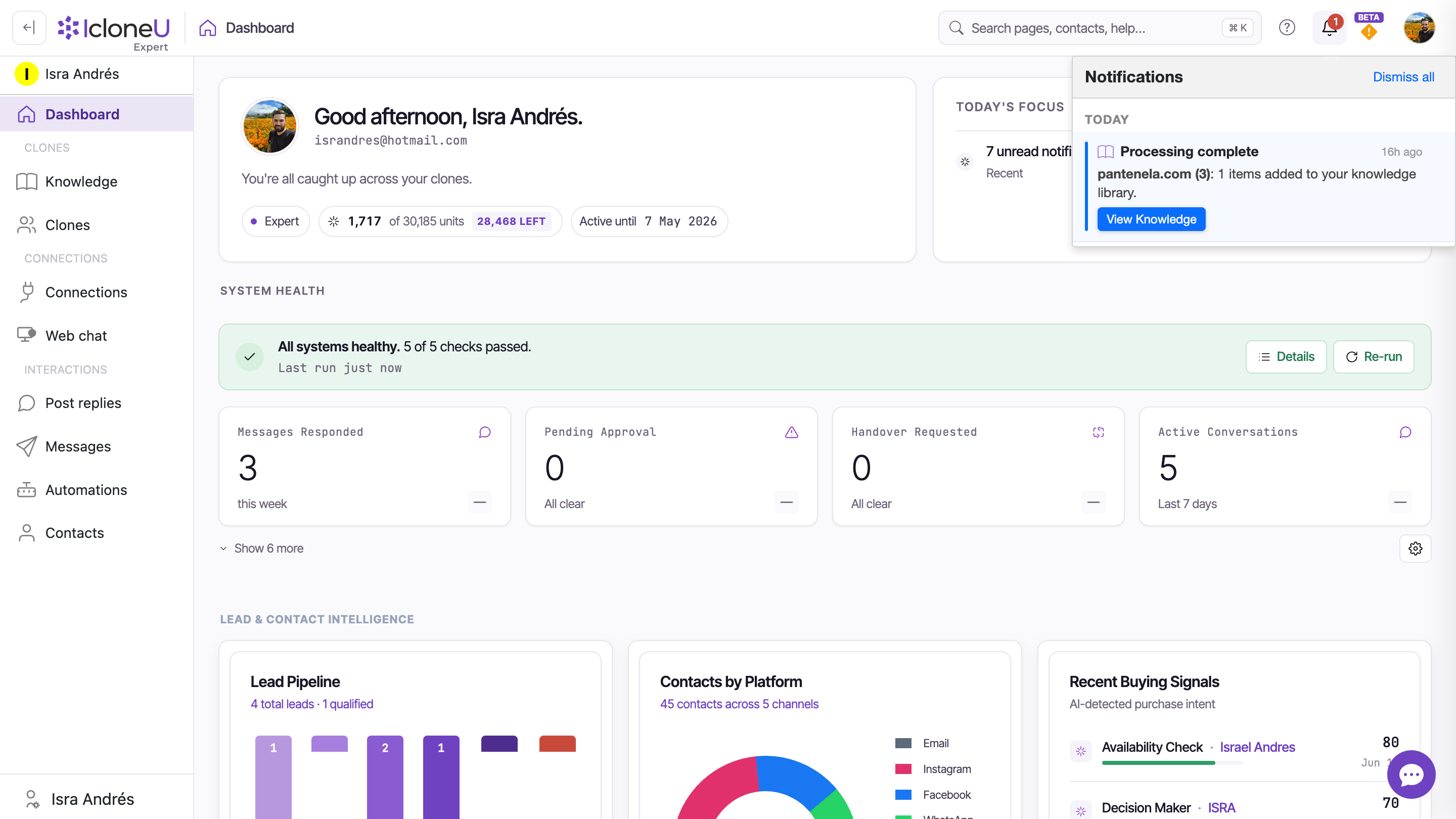
If you ignore the bell, the dashboard's Today's focus card still surfaces the count — it lists "N unread notifications" with an Open shortcut to the same panel. So notifications reach you even without opening the bell. Like the bell, the count leaves out any kind of notification whose In app switch you've turned off.
What triggers a notification
The events seen in this account so far are Knowledge-pipeline events — things that happen as a Knowledge source is processed. The panel is the home for whatever the platform emits, so other event types may appear over time, but these are the ones observed to date:
| Title | What it means | Action button |
|---|---|---|
| Processing complete | A Knowledge source finished indexing — its content is ready for your Clones to use | View Knowledge |
| Discovery complete | A website crawl found pages and is waiting for you to review and select which to add | Review Items |
The action button deep-links to the right place: View Knowledge opens the Knowledge page, and Review Items takes you to the discovered-items review step so you can approve the pages a crawl found. The detailed, per-library log of the same pipeline lives on the Activity sub-tab — a notification is the lightweight cross-surface ping that something there finished.
When a website crawl or sync can't read your site, the bell tells you why. These notices name the collection, say what went wrong and what to try, and carry a View Knowledge button — more in Adding website URLs:
| Title | When it appears |
|---|---|
| Discovery found no items | A crawl looking for your site's pages found nothing to add; the collection's row also shows No sources found |
| We could not check your site | A sync couldn't read the site, so nothing was added, updated or removed, even though Activity lists the run as completed |
| Your website's security certificate needs attention | The site's security certificate was refused (expired, issued for another address, incomplete or not trusted), so the crawl stopped. Ask whoever hosts the site to fix it, then sync again |
Low on units? As the balance approaches zero, IcloneU warns the account owner through this same bell (teammates don't get these warnings), and by default You're almost out of units also goes to the owner by email — so the owner's bell is also the early-warning channel for the thing most likely to make a Clone fall silent. See Understanding Clone response limits.
Notifications outlive the things they point at
Notification entries are independent of their source objects. Deleting the object does not retract its past notifications — an entry about a Knowledge library stays in the panel, action button and all, even after that library is gone.
Don't be surprised by a notification that points at something that no longer exists. Verified live: a deleted test library's Processing complete and Discovery complete entries were still listed days later, with their action buttons still rendered, while the Knowledge page showed no such library. Clicking such a button simply lands you on a surface where the original item isn't there anymore — it's harmless. Use Dismiss all to clear stale entries.
Clearing notifications
The badge count persists across pages and sessions — it survives navigating around the app and even logging out and back in, rather than clearing the moment you open the panel. You clear notifications deliberately, and there's exactly one bulk control for it:
Open the bell panel
Click the bell in the top toolbar to open Notifications.
Click Dismiss all
The Dismiss all action at the top right clears the list and resets the badge. New entries keep arriving quietly, as a badge count with no pop-ups in the app. To stop a kind of notification from showing up here at all, switch its In app off — see Choose how you get notified.
Dismissing is about your unread count, not the underlying events. The work a notification reported — a source finishing, a crawl awaiting review — already happened (or is still waiting) regardless of whether you dismiss the ping. For a crawl that's still waiting at Review Items, dismissing the notification doesn't approve the pages; you still need to review them on the Knowledge page.
Choose how you get notified
Each person on a team chooses how notifications reach them. Click your avatar in the top-right corner, choose Account settings, then open Notifications, the last of its five tabs. The card is titled How you get notified and has one row per kind of notification, each with two controls:
- In app, a switch. On, that kind of notification shows in your bell and its badge, in the dashboard's Today's focus count and in the IcloneU mobile app. Off, it's hidden from all of them, entries already there included (on a page you already have open, the bell catches up when you reload the page or the next notification arrives, and the dashboard count when you reload the page). It's hidden only for you: the notification is still created for your team, and teammates who keep the switch on still see it.
- Email, a list: Off, Important only or All, explained below.
Every row starts with In app on and Email on Important only, which is also what you get if you never open the tab. Each change saves the moment you make it; there's no Save button. If one can't be saved, you see Couldn't save your notification preference. Try again. and the setting stays as it was. The rows, in the order the tab lists them:
| Row | What it covers |
|---|---|
| System | No notification uses this row at the moment |
| Handovers | A conversation asking for a person, and conversations accepted, transferred, returned to the AI or left unclaimed |
| Billing and units | Units running low or almost gone, and auto top-up turned off. These go to the account owner only, so for anyone else this row changes nothing |
| Automations | Automation alert, sent by a workflow's Notify Admin step |
| Audience and leads | Your audience avatar is ready, or its update failed |
| Knowledge and clone | Knowledge results (discovery, processing and sync, finished, failed or cancelled), the website warnings above, the Weekly auto-sync digest's bell entry, and Payment details needed |
| Connections | A connection or one of its accounts stopped working, plus Check your AI identifier ✨ and Customer data request, which go to the account owner only |
| Team | No notification uses this row at the moment |
What each Email choice does:
- Off sends no email of that kind at all, not even the important ones below.
- Important only emails just the six notices IcloneU treats as important: You're almost out of units and Auto top-up was turned off (Billing and units) and Check your AI identifier ✨ and Customer data request (Connections), all four to the account owner only; Payment details needed (Knowledge and clone), to the whole team; and an Automation alert whose Notify Admin step has Email on, to whoever the step alerts. Nothing else is emailed.
- All emails every notification of that kind that's meant for you: the ones addressed to you and the ones for your whole team, such as Handover requested or Processing complete. It never emails you a notification addressed to someone else, so a teammate who sets Billing and units to All still gets nothing: billing notices go to the account owner only. The one exception is the weekly auto-sync digest: only the account owner gets it by email, whatever anyone's Email choice.
These choices change only what reaches you; each person sets their own. They also apply only to the team you're working in, which the card's subtitle names, so if you belong to two teams, set them once in each. What you choose here also applies to the notification list and badge of the IcloneU mobile app.
The tab doesn't cover every email IcloneU sends. These don't follow it: the weekly auto-sync digest email (its bell entry does follow the In app switch of your Knowledge and clone row), invoice emails and the reminder before a trial ends, and sign-in and account emails such as password resets.
For alerts of your own, a workflow's Notify Admin step sends its message as an In-app alert, an Email or both, to the Whole team or Only the automation owner (the account's owner, even when a team member built the automation). Each recipient's Automations row still applies — see Workflow actions.
Frequently asked
By email, yes: on Account settings → Notifications, set a row's Email to All to get every notification of that kind, or keep Important only for just the important ones — see Choose how you get notified. There's no daily-digest setting. Until you change anything, these are the notices emailed: four that reach only the account owner — You're almost out of units, Auto top-up was turned off, Check your AI identifier ✨ (the reminder sent 7 days after you first confirm the AI identifier on a connection) and Customer data request (a customer of your Tiendanube store asked for a report of their personal data) — and Payment details needed, which reaches everyone's bell, marked urgent, and every team member by email. It's sent when the Clone tried to give a customer payment details it couldn't verify and had no handover to pass the conversation to, so it told them a person will follow up; its button opens the conversation. A Notify Admin step with its Email channel on emails the people it alerts — see Workflow actions. Every one of these emails comes as plain text in the recipient's language: the language chosen in their own IcloneU account, otherwise Spanish if that account's billing country is Spanish-speaking, otherwise IcloneU's default language. Some email sits outside these settings. If the Auto-sync enabled master switch is on, the Weekly auto-sync digest is set up to go to the owner by email in any week a sync finished, scheduled or started by hand; its bell entry, which reaches the whole team, follows only the In app switch of each person's Knowledge and clone row, and no Email choice, All included, emails it. Invoice emails, and the reminder before a trial ends, are sent by the billing system, not by these notifications. And sign-in and account emails, such as password resets, always arrive.
Kind by kind. On Account settings → Notifications, switch a row's In app off and that kind disappears from your bell, its badge, the dashboard count and the mobile app, entries already there included; set its Email to Off to stop its emails. There's no single switch for everything, so turn off each row you don't want. In the app, notifications are unobtrusive anyway — a badge count, never a pop-up — and Dismiss all in the bell panel clears what's there.
On the Notifications tab of Account settings: click your avatar in the top-right corner, choose Account settings, then Notifications, the last of its five tabs. The bell panel has no link to them.
No. Notifications are independent of their source objects, so an entry stays in the panel after the object it referenced is gone, action button and all. It's harmless — clicking it just lands on a surface where the item no longer exists. Dismiss all clears stale entries.
Start with your own settings on Account settings → Notifications: a row with In app off hides that kind from your bell, and a row's Email choice decides whether it's emailed. Then check what no setting changes: the notices addressed to the account owner — the low-units warnings, Auto top-up was turned off, Check your AI identifier ✨ and Customer data request — never reach a teammate, and the Weekly auto-sync digest comes only while the Auto-sync enabled master switch is on. A workflow's Notify Admin alert reaches the bell only when its step has In-app alert on. Settings are kept per team, too: if you belong to two teams, check the tab while working in the right one. For Knowledge, the Activity sub-tab is the authoritative per-library log.
Last updated October 6, 2026 · Account & Settings